Android app signing explained: Play App Signing, upload keys and backups
What Play App Signing does, the difference between your app signing key and upload key, how to back up your keystore and what to do if you lose it.
· 3 मिनट में पढ़ें
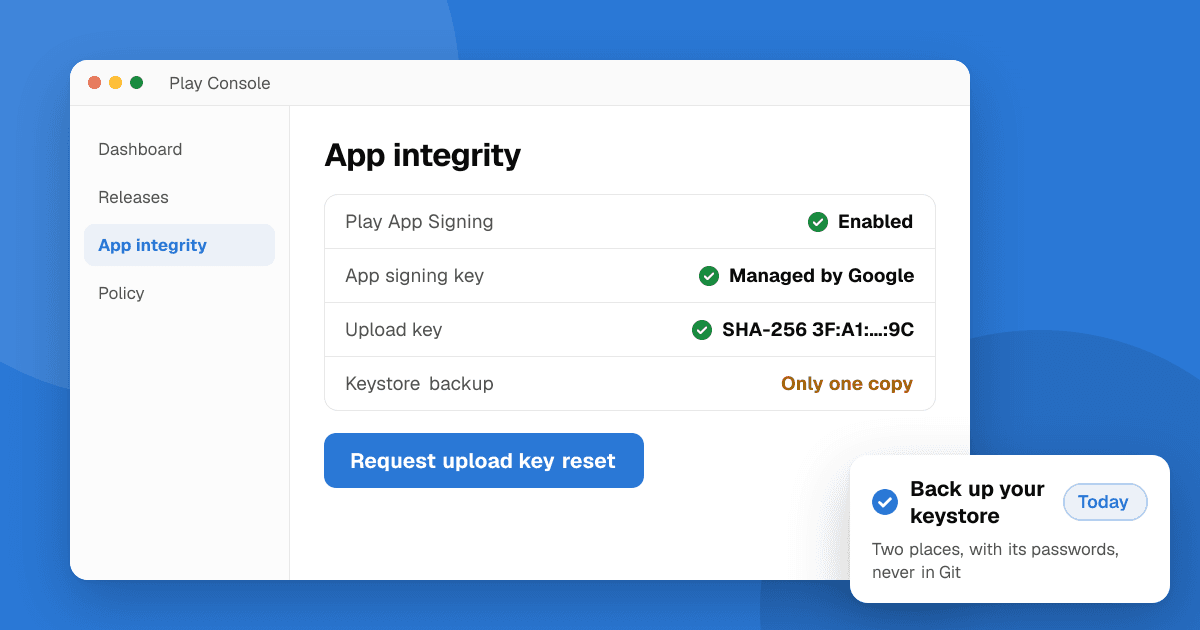
Short answer: with Play App Signing, Google keeps your app signing key (the key users' devices check) and you sign uploads with a separate upload key. New apps on Google Play use Play App Signing because they're published as Android App Bundles. Back up your upload keystore and its passwords in two safe places, never commit them to Git, and if you lose the upload key, you can ask Google to reset it from Play Console instead of losing the app.
What are the two keys?
- App signing key: signs the APKs that users install. Every update must be signed with the same key, or devices refuse to install it. With Play App Signing, Google stores this key for you.
- Upload key: the key you use to sign the app bundle you upload to Play Console. Google checks it, removes it and re-signs with the app signing key.
Separating them means a lost or leaked upload key can be replaced without breaking updates for your users.
How do I set up Play App Signing?
- Create an upload keystore in Android Studio (Build, Generate Signed Bundle) or with keytool.
- Build an Android App Bundle (.aab) signed with that upload key.
- Create the app in Play Console and upload the bundle. Play App Signing is set up for new apps, and Google generates the app signing key unless you choose to provide your own.
- Note the certificate fingerprints in Play Console (App integrity) for services that need them, such as Google sign-in, Maps or Firebase. Use the app signing certificate for release builds from the store.
How should I store my keystore?
- Two backups in separate places, for example an encrypted password manager and an encrypted offline drive.
- Store the passwords (keystore and key) with the backup. A keystore without its password is useless.
- Never commit the keystore or its passwords to Git. In CI, load them from encrypted secrets.
- Write down the key alias and which app it belongs to.
What if I lose my upload key?
If your app uses Play App Signing, you can request an upload key reset in Play Console. You generate a new upload key, export its certificate and send it through the reset request. After Google processes it, you sign future uploads with the new key. Existing users aren't affected because the app signing key didn't change.
If an old app doesn't use Play App Signing and you lose the only signing key, you can't publish updates to that listing. That's the strongest reason to enroll and keep backups.
Common signing mistakes
- Using a debug key for a release build.
- Registering the upload certificate with Google sign-in or Firebase instead of the app signing certificate, so sign-in works in testing but fails for store users.
- Different keys per machine, so a build from another computer is rejected.
- Sharing the keystore over chat or email.
Next steps
Check App integrity in Play Console to confirm Play App Signing is on, back up your upload keystore and passwords in two places today, and register the right fingerprints with your services. Publishing for the first time? Follow how to publish your first app on Google Play, then list it on TrueLaunch to get your first reviewers.
Frequently asked questions
What is the difference between an app signing key and an upload key?
The app signing key signs the app users install and rarely changes (Play supports a one-time key upgrade). The upload key only proves to Google that an upload came from you; with Play App Signing it can be reset if lost.
What happens if I lose my Android keystore?
If your app uses Play App Signing, you can request an upload key reset in Play Console and keep updating the app. Without Play App Signing, losing the only signing key means you can't update that listing.
Why does Google sign-in work in testing but fail for store users?
Usually the upload or debug certificate fingerprint is registered instead of the app signing certificate. Add the app signing certificate's SHA fingerprint from Play Console's App integrity page.