Mobile app accessibility checklist for indie developers
A practical accessibility checklist for Android and iOS apps and games: screen readers, text size, contrast, touch targets, motion and testing tips.
· 5 min read
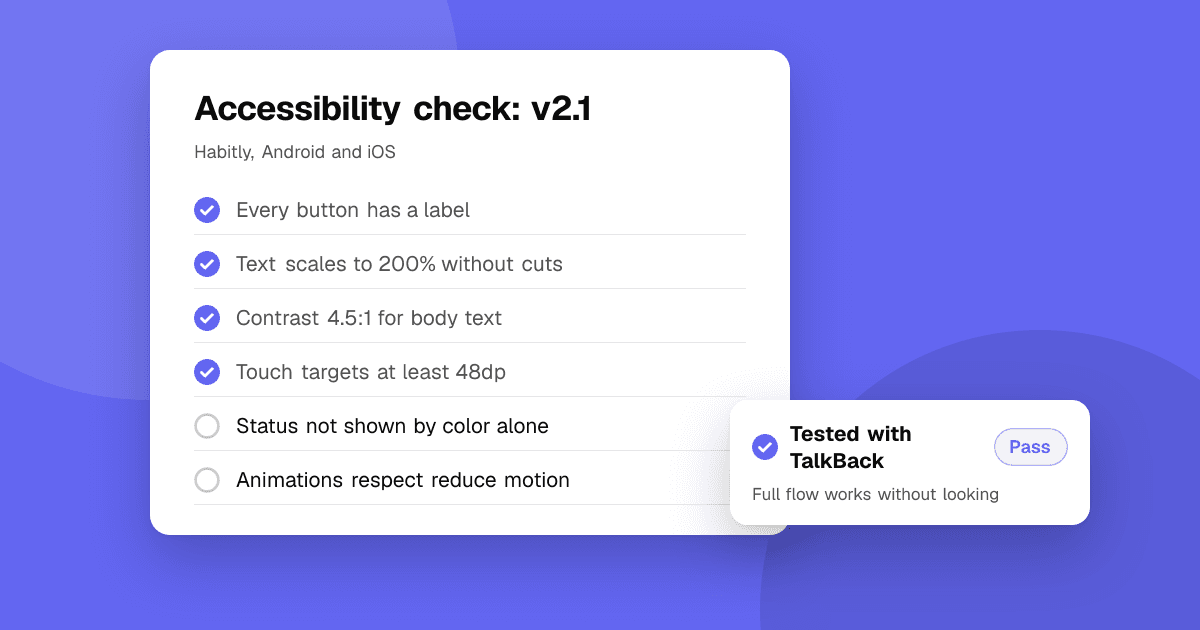
Short answer: an accessible app works for people who use screen readers, larger text, switch controls or other assistive technology, and for anyone using a phone one-handed in bright sunlight. The biggest wins are easy: label every button for screen readers (TalkBack and VoiceOver), support the system text size, keep enough color contrast, make touch targets large enough, and never rely on color, sound or motion alone. Then test with the screen reader turned on.
Why does accessibility matter for a small app?
- More people can use it. Many people live with a visual, hearing, motor or cognitive disability, and many more have temporary or situational limits.
- Better for everyone. Clear labels, readable text and bigger buttons help all users.
- Store and legal expectations. Both Apple and Google publish accessibility guidelines, and accessibility laws apply to apps in a growing number of countries. This guide isn't legal advice; check what applies to you.
- Better feedback. People who rely on accessibility features notice problems quickly and tell you about them.
Screen readers: can someone use the app without seeing it?
- Label every interactive element. Icon-only buttons need a content description (Android) or accessibility label (iOS). "Delete photo", not "button" or "icon".
- Hide decorative images from the screen reader so it doesn't read "image" over and over.
- Use a logical reading order that matches the visual order.
- Group related items so a card is read as one item instead of five fragments.
- Announce changes that happen without user action, like "Saved" or an error message.
- Use standard controls where you can. Native buttons, switches and lists come with accessibility built in; custom-drawn controls need extra work.
Text: can people read it?
- Support dynamic type (iOS) and font scaling (Android). Use scalable text units and test at the largest settings.
- Let layouts grow. Text that is cut off at large sizes is a common failure. Allow wrapping and scrolling.
- Keep sizes readable by default; avoid tiny body text.
- Avoid text in images where possible; if you must, provide the same text to screen readers.
Color and contrast: can people see it?
- Aim for at least 4.5:1 contrast for normal text and 3:1 for large text and important icons, following WCAG guidance.
- Never use color alone to show meaning. Add an icon, a label or a pattern to errors, required fields and game states.
- Check dark mode separately; contrast often breaks there.
- Consider color vision deficiency in games: let players tell teams, items and hazards apart by shape as well as color.
Touch: can people tap it?
- Make touch targets large enough. Apple recommends at least 44 by 44 points and Google at least 48 by 48 dp.
- Leave space between targets so people don't hit the wrong one.
- Offer alternatives to complex gestures. A swipe-to-delete should also be reachable from a menu or button.
- Don't require precise timing unless it's the point of the game, and consider an option to slow it down.
Motion, sound and time
- Respect "reduce motion" settings: tone down parallax, zooms and large animations.
- Avoid flashing content. Rapid flashes can trigger seizures; WCAG recommends no more than three flashes per second.
- Don't rely on sound alone. Add captions or visual cues for important audio, and subtitles in games.
- Avoid hard time limits for reading or input, or let people extend them.
Forms and errors
- Give every field a visible label, not just placeholder text that disappears.
- Explain errors in words, next to the field, and tell screen reader users about them.
- Use the right keyboard type for email, numbers and phone numbers.
- Support autofill and password managers.
Games: what extra should I consider?
- Remappable controls and support for external controllers where it makes sense.
- Difficulty and assist options, such as slower speed or aim assist, without judgment.
- Subtitles with adjustable size and background.
- Color-blind friendly palettes or symbols on top of color.
How do I make accessibility part of every release?
A one-time fix decays quickly as new screens are added. Build it into how you work:
- Add accessibility to your definition of done: every new screen has labels, supports large text and passes a contrast check.
- Use the automated checks in your tests where your platform supports them, so missing labels fail the build.
- Keep a short accessibility section in release notes when you fix something, so people who rely on it know it's improving.
- Write an accessibility statement on your website or store page saying what you support and how to report problems.
How do I test accessibility?
- Turn on TalkBack (Android) or VoiceOver (iOS) and try to complete your app's main task with your eyes closed. Note every unlabeled or confusing element.
- Set text to the largest size and walk through every screen.
- Run the automated tools: Accessibility Scanner on Android and the Accessibility Inspector in Xcode catch many missing labels and small targets.
- Check contrast with a contrast checker.
- Ask people who use assistive technology for feedback, and treat what they say as high-priority bugs.
Next steps
Spend an hour with the screen reader on and fix every unlabeled button you find; it's the single biggest improvement. Then work through the list above one section per release. For collecting feedback, see how to run a usability test for your app, and list your app on TrueLaunch so real people can tell you what worked, what could be better and which bugs they found.
Frequently asked questions
What is the minimum touch target size for mobile apps?
Apple's Human Interface Guidelines recommend at least 44 by 44 points, and Google's Material guidance recommends at least 48 by 48 dp for touch targets.
How do I test my app with a screen reader?
Turn on TalkBack in Android's accessibility settings or VoiceOver in iOS settings, learn the basic gestures, and try to complete your main task without looking at the screen.
What contrast ratio should my app's text have?
WCAG recommends at least 4.5:1 for normal text and 3:1 for large text and essential icons. Check both light and dark mode.