How to publish your first app on Google Play: a step-by-step guide
Publishing your first Android app? Here is every step on Google Play: the developer account, app bundle, store listing, policy forms, testing and review.
· 5 min de lectura
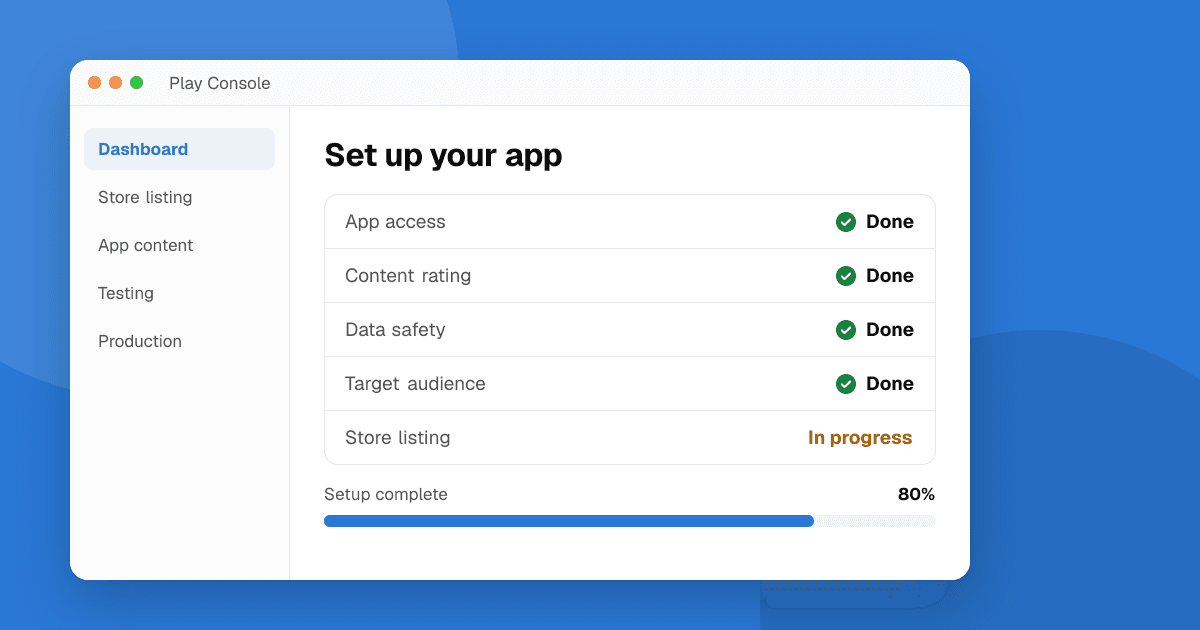
Short answer: create a Google Play developer account (a one-time $25 fee plus identity verification), build a signed Android App Bundle, create the app in Play Console, fill in the store listing and the required policy forms (content rating, data safety, target audience, ads and app access), test it, and send it for review. New personal accounts must also run a closed test with at least 12 testers for 14 days before they can apply for production access. Plan for one to three weeks from account creation to a live app.
What do I need before I start?
- A Google account you will keep using for years. The developer account is tied to it.
- A payment card for the one-time registration fee (currently $25).
- Identity documents. Google verifies developer identities, so have a government ID ready. Organization accounts also need a D-U-N-S number.
- A finished, tested build of your app, and a privacy policy hosted at a public URL. Almost every app needs one, and it is required if you handle any personal or sensitive data.
- Store assets: an icon (512 x 512), a feature graphic (1024 x 500) and at least two phone screenshots.
Fees, document requirements and limits change, so always confirm the current details in Play Console while you sign up.
Step 1: Should I choose a personal or an organization account?
- Personal account: for individuals. Your developer name is shown publicly, and new personal accounts have to complete the closed testing requirement before production.
- Organization account: for registered businesses. It needs a D-U-N-S number and business verification, but it is not covered by the 12-tester rule.
If you are a solo developer without a registered company, a personal account is normal. Just plan your schedule around the testing requirement.
Step 2: How do I prepare the build?
Google Play requires the Android App Bundle (AAB) format for new apps.
- Set a unique, permanent application ID (package name), such as com.yourname.habittracker. It can never be changed after publishing.
- Target the API level Google currently requires for new apps (Play Console tells you if you're below it).
- Build a release bundle in Android Studio (Build, then Generate Signed Bundle) or with your framework's tooling (Flutter, React Native, Unity).
- Enroll in Play App Signing. Google keeps the app signing key, and you sign uploads with an upload key. Back up your upload key and its password somewhere safe.
Step 3: How do I create the app in Play Console?
Click Create app, choose the default language, app name, whether it's an app or a game, and free or paid. Free apps can't later become paid, so decide carefully.
Then open the Dashboard. It shows a checklist of everything you must finish before release. Work through it top to bottom.
Step 4: What goes into the store listing?
- App name (up to 30 characters): clear and memorable, not stuffed with keywords.
- Short description (up to 80 characters): what the app does and for whom.
- Full description (up to 4,000 characters): the main benefits first, then features. Write for people, not for algorithms.
- Graphics: icon, feature graphic and screenshots that show the real app.
- Category and contact details: an email address is required.
Step 5: Which policy forms do I have to fill in?
These live under Policy and programs, App content. Answer them honestly; mismatches between what you declare and what the app does are a common reason for rejection.
- Privacy policy: a link to your hosted policy.
- App access: if parts of the app need a login, give reviewers working test credentials and instructions.
- Ads: whether the app shows ads.
- Content rating: a questionnaire (IARC) that gives your app age ratings for each region.
- Target audience and content: the age groups your app is for. Choosing children brings extra rules (the Families policy).
- Data safety: what data the app and its SDKs collect and share, and why. Check your analytics, ads and crash reporting libraries too, not just your own code.
- Government apps, financial features, health apps and similar declarations if they apply.
Step 6: How does the testing requirement work?
If your personal account was created after November 13, 2023, you must run a closed test with at least 12 testers opted in for 14 consecutive days, then apply for production access. Our guide on getting 12 testers for Google Play closed testing walks through it, and internal, closed and open testing explained covers the different tracks.
Even if the rule doesn't apply to you, an internal or closed test before production catches crashes and confusing screens while only a few people see them.
Step 7: How do I release to production?
- Go to Test and release, Production, and create a new release.
- Upload your bundle (or promote one from a testing track) and write short release notes.
- Choose the countries and regions where the app is available.
- Consider a staged rollout (for example 20% of users first) so a bad bug reaches fewer people.
- Send the release for review.
Reviews often take a few days, and first submissions from new accounts can take longer. You'll get an email when the app is approved or if something needs fixing.
What are common first-time mistakes?
- Declaring "no data collected" while an analytics or ads SDK collects data.
- No test login for reviewers when the app requires an account.
- Screenshots or descriptions that don't match the app, or that use other brands' names and logos.
- Losing the upload key. Play App Signing lets you reset it, but it takes time.
- Asking users to rate the app in exchange for rewards. Incentivized ratings break Google Play's policies.
Next steps
Start your developer account and identity verification today, since that part can take a few days. While you wait for review, list your app on TrueLaunch so real people can try it and leave structured feedback, and read how to get honest feedback on your app.
Frequently asked questions
How much does it cost to publish an app on Google Play?
There is a one-time registration fee, currently $25, for a Google Play developer account. There is no yearly fee. Confirm the current amount in Play Console when you sign up.
How long does Google Play review take?
Often a few days, and sometimes longer for new developer accounts or apps that need extra checks. Play Console shows the status, and you'll get an email when the review finishes.
Do I need a privacy policy for my Android app?
In practice, yes. It is required whenever the app or its SDKs handle personal or sensitive user data, and Play Console asks for a privacy policy link for nearly all apps.
Can I change my app's package name after publishing?
No. The application ID is permanent on Google Play. Choose a name you are happy to keep, such as com.yourname.appname.