How to reduce your app's size and startup time
Smaller downloads and faster launches help more people install and keep your app. Practical steps for Android and iOS: measure, shrink, then speed up.
· 5 min de lectura
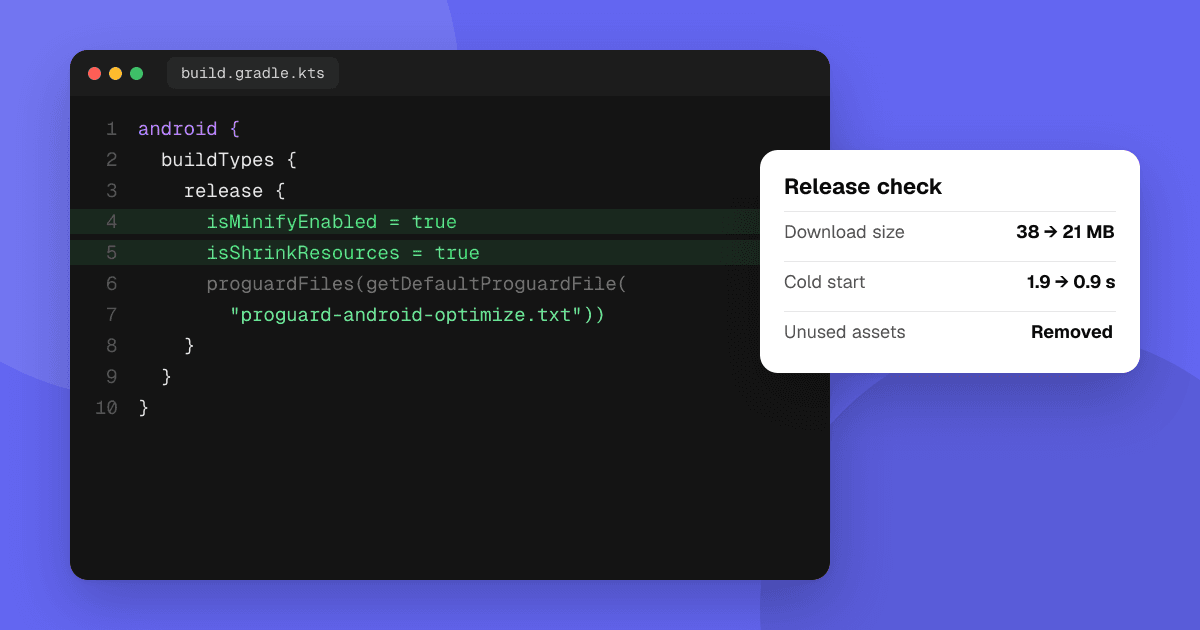
Short answer: measure first, then fix the biggest causes. For size, publish Android App Bundles, shrink code and resources, compress images and audio, remove unused libraries and download large optional content later. For startup, do less work before the first screen: delay SDK initialization, avoid network calls and heavy disk reads on the main thread, and show useful content quickly. Test on an older, low-end phone, because that's where your users feel it most.
Why do size and startup time matter?
- Downloads: a large app is slower to download and takes storage that many people don't have, especially on budget phones and limited data plans. Some people skip big downloads entirely.
- First impressions: a slow launch feels broken. People who wait on a blank screen may never reach your onboarding.
- Store signals: both stores show performance data to developers (Android vitals in Play Console, the Organizer in Xcode). Google has said that bad technical quality can affect how apps are shown on Google Play; check the current guidance in Play Console.
How do I measure app size?
- Android: Play Console shows download and install sizes per device type in the App size report. Android Studio's APK Analyzer shows what takes space inside a build.
- iOS: App Store Connect shows estimated download and install sizes for each build per device. Xcode can create an app thinning size report when you export.
- Track it over time. Add the size to your release notes or CI so you notice when a release grows by a lot.
How do I make the app smaller?
Ship only what each device needs
- Android App Bundles (required for new apps on Google Play) let Google Play deliver only the code and resources each device needs, such as the right screen density and CPU architecture.
- iOS app thinning does something similar automatically for App Store builds.
Shrink code and resources
- Enable code shrinking and obfuscation (R8 on Android) and resource shrinking to remove unused code and resources.
- Remove unused libraries. Check your dependencies; one SDK you no longer use can add megabytes.
- Prefer smaller libraries for simple tasks. Pulling in a huge library for one function is a common cause of bloat.
Compress media
- Images: use modern formats such as WebP (Android) or HEIC where supported, vector graphics for icons, and the smallest resolution that still looks sharp.
- Audio: compressed formats at sensible bitrates; mono where stereo isn't needed.
- Video: don't bundle long videos; stream them or download later.
- Fonts: include only the weights and character sets you use.
Download large content later
- Android: Play Feature Delivery and Play Asset Delivery let you deliver features or large game assets after install or on demand.
- iOS: On-Demand Resources and Background Assets can download content later.
- Games: ship the first levels in the app and download the rest in the background, with a clear progress message.
How do I measure startup time?
- Android: Android vitals reports slow cold, warm and hot starts. Android Studio's profilers and Macrobenchmark help you measure locally.
- iOS: the Organizer shows launch time metrics from real users, and Instruments has an App Launch template.
- Test cold starts (app not in memory) on a low-end device; that's the worst case.
How do I make the app start faster?
- Do less before the first frame. Move everything that isn't needed for the first screen out of app startup.
- Initialize SDKs lazily. Analytics, ads and other SDKs often initialize at launch by default; delay the ones you can until after the first screen or until they're needed.
- Keep the main thread free. Don't read large files, parse big JSON or hit the network on the main thread at startup.
- Show something useful fast. Render cached content or a lightweight first screen instead of a long spinner.
- Use platform tools: Baseline Profiles on Android can speed up startup by precompiling important code paths.
- Load game assets progressively. Load the menu first, then the level, instead of everything up front.
What should I check before every release?
Size and speed creep back unless you watch them. Add these lines to your release checklist:
- Compare the download size with the previous release and explain any big jump.
- Measure a cold start on the same low-end test device each time.
- Review new dependencies added since the last release and what they bring with them.
- Check new images and audio were compressed before they went into the build.
- Look at Android vitals and the Xcode Organizer a few days after release for new slow starts, ANRs or hangs.
What about performance after launch?
- Watch for jank: slow frames and long freezes. Profile scrolling lists and animations.
- Fix ANRs (Android) and hangs (iOS): both stores report them, and they usually come from main-thread work.
- Check memory: low-end devices kill apps that use too much memory, which looks like a crash to the user.
See crash reporting for indie developers for how to track crashes and ANRs.
Next steps
Look up your current download size and launch time in the store consoles today, pick the single biggest cause of each and fix it in your next release. Then ask real people how the app feels on their phones: list your app on TrueLaunch and read how to get honest feedback on your app.
Frequently asked questions
What is the difference between download size and install size?
Download size is how much data the store sends to the device, which is compressed. Install size is how much storage the installed app takes, which is usually larger.
Does app size affect installs?
It can. Large apps take longer to download and need more free storage, which matters most for people on budget phones or limited data plans.
What is a cold start?
A cold start is when the app launches from scratch because it isn't in memory. It is the slowest kind of launch and the one to optimize first.