App screenshots and icons that convert: a practical guide
Your icon and first screenshots decide whether people install. How to design them for Google Play and the App Store, and how to test which version works.
· 5 min read
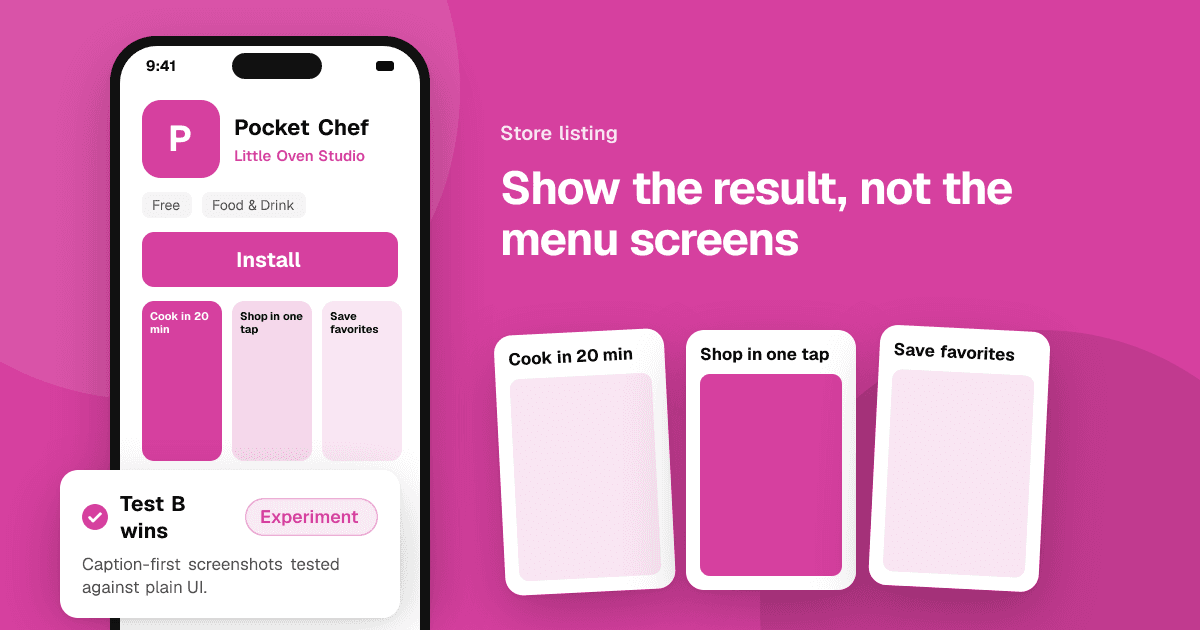
Short answer: people decide in seconds, mostly from your icon and the first two or three screenshots. Make the icon simple and recognizable at tiny sizes. Make the first screenshot show your main benefit with a short caption, using real app screens. Tell one clear story across the set, keep text large enough to read on a phone, and test changes with Google Play store listing experiments or App Store product page optimization.
Why do icons and screenshots matter so much?
In search results, people see your icon, name and often the first screenshots before anything else. They compare you with the apps around you and decide quickly whether to tap. On your store page, many visitors only swipe through a few screenshots before installing or leaving. Better visuals mean more installs from the same traffic, which also helps your ranking over time.
What makes a good app icon?
- One simple idea. A single symbol or character, not a scene. Icons are often shown very small.
- Readable at small sizes. Shrink it to the size of a search result on your phone. If you can't tell what it is, simplify.
- Distinct from competitors. Search for your main keyword and look at the icons around yours. If they're all blue, consider another color.
- No text, or one letter at most. Words become unreadable at small sizes.
- Consistent with the app. The icon should match the colors and style people will see inside.
- Works on light and dark backgrounds, since both stores and phones use both.
Technical notes: Google Play needs a 512 x 512 pixel icon, and the store applies the rounded shape for you. On iOS you provide the icon in your app, and the system applies the rounded corners, so don't add your own rounded corners or transparency.
For games, a character's face or a recognizable object from the game often works well, because it creates emotion and stands out.
What should the screenshots show?
Think of your screenshots as a short story told in a few frames.
- First screenshot: the main benefit. What does someone get from this app? Show the screen that best proves it, with a caption like "Track every expense in seconds".
- Second and third: the key features that support that benefit, one per screenshot.
- Later screenshots: details for people who are still deciding: settings, customization, extra modes, offline use.
Tips that apply to both stores:
- Use real app screens. Polished, but true to what people will see. Misleading screenshots lead to uninstalls and bad reviews.
- Add short captions. Three to six words, large and high-contrast. Many people don't read the description.
- Write captions as benefits, not feature names: "Never miss a bill" instead of "Notifications".
- Keep the style consistent: the same colors, font and layout across the set.
- Design for phones first. Check that captions are readable on a small screen.
- Localize captions for your biggest markets, if you can.
What's different for games?
- Show gameplay, not menus. The core action of the game should be visible in the first screenshot.
- Show progression and variety: different levels, worlds, characters or modes.
- Use a short video if the game's feel is hard to capture in stills. Start with action right away.
- Don't show things that aren't in the game. Store policies forbid misleading visuals, and players notice.
What about videos?
A short video can help when the app or game is easier to show than to explain.
- On the App Store, app previews are short videos (up to 30 seconds) recorded from the app, and they play automatically without sound on many screens.
- On Google Play, you add a YouTube video link to your listing.
In both cases, show the most interesting part in the first few seconds, and design it to work without sound.
How do I test which version works?
Don't guess. Both stores have built-in testing:
- Google Play store listing experiments (in Play Console) let you test different icons, screenshots, videos and texts on a share of your store visitors and compare installs.
- App Store product page optimization (in App Store Connect) lets you test up to three alternative versions of your icon, screenshots and app previews against your original page.
Good testing habits:
- Test one big change at a time, like a new first screenshot or a new icon color.
- Start with the icon and first screenshot, because they have the biggest effect.
- Run tests long enough to get a clear result. Apps with little traffic need more time.
- Keep notes on what you tested and what won, so you build up knowledge.
On iOS, a new icon in a test needs to be included in your app binary first. Check Apple's current requirements in App Store Connect before planning an icon test.
How do I get honest opinions before testing?
Store tests need traffic. Before that, ask people directly:
- Show two icon options to people in your target audience and ask which app they'd tap and why.
- Show someone your first screenshot for five seconds, then ask what the app does.
- Ask reviewers what they expected from the store page and whether the app matched it.
If you list your app on TrueLaunch, reviewers tell you what worked, what could be better and which bugs they found, which often reveals whether your visuals set the right expectations.
What should I avoid?
- Showing ratings, review quotes or "No. 1" claims you can't support. Never ask for ratings in your visuals.
- Tiny text that's unreadable on a phone.
- Screenshots of features that don't exist or aren't available yet.
- Too much going on: several messages per screenshot means none of them lands.
- Copying a competitor's style so closely that people can't tell you apart.
Next steps
Look at your listing on a phone, next to your competitors in search results. Fix the icon's readability and rewrite your first screenshot caption as a benefit. Then pair the visuals with strong text using how to write an app description that converts and the basics in ASO for indie developers.
Frequently asked questions
How many screenshots should I upload?
Use enough to tell your story, but put the most effort into the first two or three, since many visitors don't swipe further. Each one should show one clear benefit or feature.
Should app screenshots have text on them?
Short captions usually help, because many people never read the description. Keep them to a few large, high-contrast words that describe a benefit.
Can I A/B test my app icon?
Yes. Google Play store listing experiments and App Store product page optimization both support testing icons. On iOS, alternative icons must be included in your app binary first.