How to use TestFlight for beta testing your iOS app
Set up TestFlight internal and external testing, pass Beta App Review, share a public link and collect useful feedback before your App Store release.
· 3 min de lectura
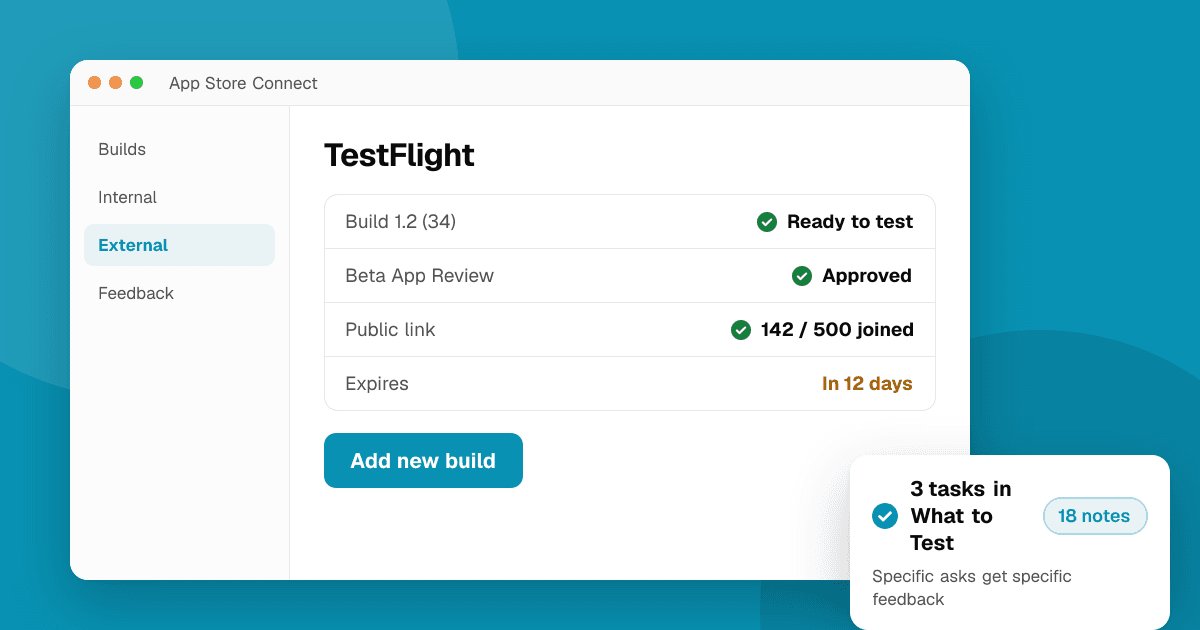
Short answer: upload a build to App Store Connect, add teammates as internal testers (up to 100, no review needed), then create an external group for everyone else (up to 10,000 testers). The first build for external testers goes through Beta App Review. Invite people by email or with a public link, tell them what to test, and collect feedback through TestFlight's screenshot feedback and a short survey. Each build stays available for 90 days.
What is the difference between internal and external testers?
Internal testers:
- Must be members of your App Store Connect team with a suitable role.
- Up to 100 people.
- Get builds right after processing, without review.
- Best for you, co-founders and close collaborators.
External testers:
- Anyone with an email address or your public link.
- Up to 10,000 people.
- The first build of a version needs Beta App Review, which is usually faster than full App Review.
- Best for real users, friends of friends and communities.
How do I set up TestFlight step by step?
- Archive and upload your build from Xcode (or your CI) to App Store Connect.
- Answer export compliance questions for the build if asked.
- Fill in Test Information: a beta description, feedback email and what to test. For external testing, add sign-in details if your app needs an account.
- Add internal testers in the TestFlight tab.
- Create an external group, add the build and submit it for Beta App Review.
- When approved, invite testers by email or turn on a public link with an optional tester limit.
How do I get useful feedback from testers?
- Write "What to Test" notes for every build: two or three specific tasks, not "try everything".
- Remind testers they can send screenshot feedback from inside TestFlight; it arrives in App Store Connect with device details.
- Add a short survey with three questions: what worked, what was confusing, what broke.
- Check crash reports from TestFlight builds in App Store Connect and Xcode Organizer.
Our beta test plan template covers goals, tasks and surveys in detail.
Where do I find external testers?
- Your email list and social followers.
- Communities where your audience already is (read each one's self-promotion rules first).
- TrueLaunch: list the app and point to your public TestFlight link so developers and early adopters can try it and leave honest reviews.
See how to find playtesters for more places, most of which work for apps too.
What are common TestFlight mistakes?
- Builds expire after 90 days. Upload a new one before testers lose access.
- No sign-in for the reviewer. Beta App Review needs a working demo account if your app requires login.
- Asking testers for App Store ratings. Beta testers can't rate on the store, and you should never reward ratings anyway. Ask for honest written feedback instead.
- Too many changes per build. Testers can't tell you what got better if everything changed.
Next steps
Upload your build, add yourself as an internal tester, and create one external group with a public link. Write three tasks in "What to Test". Then share the link where people will actually try it: submit your app to TrueLaunch. Testing on Android too? Read Google Play testing tracks explained.
Frequently asked questions
How many testers can I have on TestFlight?
Up to 100 internal testers from your App Store Connect team and up to 10,000 external testers invited by email or public link.
Do TestFlight builds need review?
Builds for internal testers don't. The first build of a version for external testers goes through Beta App Review, which is usually quicker than full App Review.
How long does a TestFlight build last?
Each build is available for testing for 90 days after upload. Upload a newer build before then so testers keep access.