In-app feedback examples: forms, buttons and prompts that work
Copy-ready in-app feedback examples: a feedback button, shake to report, one-question prompts, bug and feature forms, and exit surveys, with when to ask each.
· 6 min read
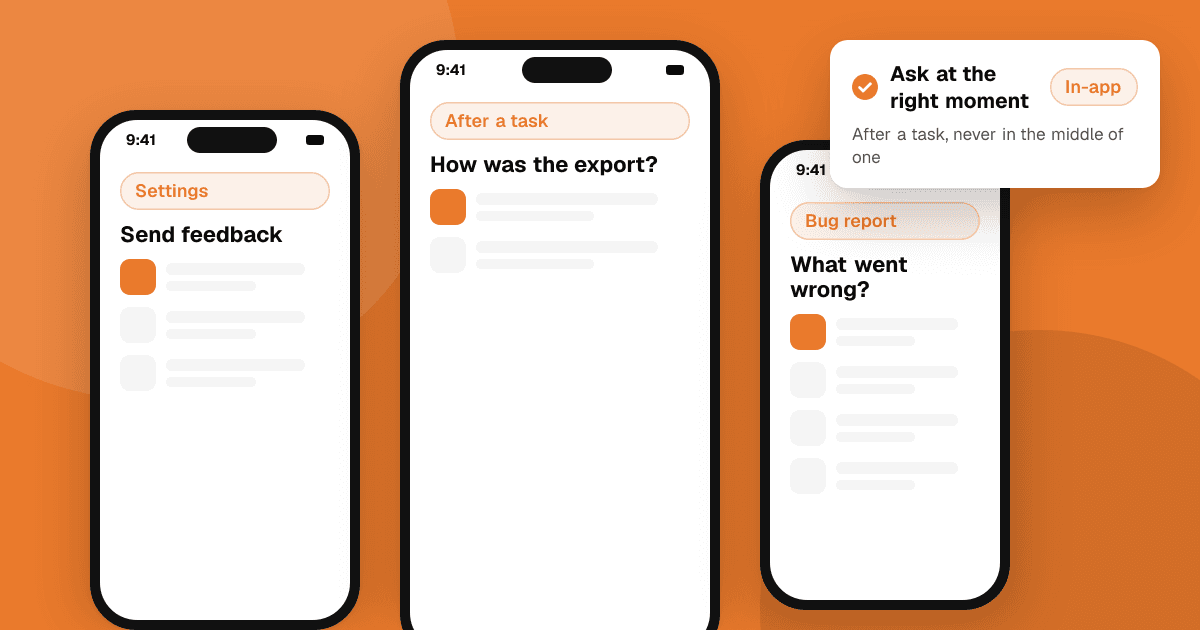
Short answer: give people one feedback entry point they can always find (a "Send feedback" item in settings or the help menu). Then add a few small prompts at the right moments: a one-question check after someone finishes a task, a short bug form when something fails, and an optional exit question when they cancel. Keep each prompt to one or two questions, never interrupt a task in progress, and collect only the data you need to act on the answer.
What makes in-app feedback work?
Good in-app feedback has three parts:
- The right moment. Ask right after something happened (a task completed, an error, a cancellation), not at launch or in the middle of a flow.
- One clear question. "How was exporting your report?" gets more useful answers than "Any feedback?".
- A visible result. Say what happens next ("We read every message") and, when you ship a fix, mention it in the release notes. People give more feedback when they see it used.
The examples below are copy-ready. Change the wording to match your app's voice.
Example 1: a feedback button that is always there
Every app should have a permanent, low-pressure way to reach you. Put it where people look when something is wrong: settings, the help screen or the profile menu.
- Label: "Send feedback" or "Report a problem". Avoid vague labels like "Contact".
- Screen title: "Tell us what's on your mind"
- Choices: "Something isn't working", "I have an idea", "Something else"
- Text field placeholder: "What happened, and what did you expect?"
- Confirmation: "Thanks. We read every message, and we'll reply if you left an email."
Attach the app version, OS version and device model automatically, and tell people you're doing it. That saves them typing and saves you a round of questions.
Example 2: shake to report a bug
Shaking the phone to open a bug report is useful in beta builds and for testers, because it captures a screenshot of the exact screen. Many people don't know the gesture exists, so mention it once during onboarding or in your tester instructions, and let users turn it off. In a public release, keep the settings button as the main path, since shaking by accident is common while walking or in a car.
- Prompt after shake: "Report a problem with this screen?"
- Buttons: "Report" / "Not now" / "Turn off shake to report"
Example 3: a one-question check after a task
The best moment to ask is just after someone completes something meaningful: their first export, their fifth workout logged, the end of a level.
- Question: "How easy was it to export your report?"
- Answers: a 1 to 5 scale from "Very hard" to "Very easy", or three faces
- Follow-up (only for low answers): "What made it hard?"
Ask each person at most once for each task, and not again for weeks. Show it as a small card or bottom sheet that can be dismissed with one tap, never as a blocking pop-up.
Example 4: a bug report form
When something fails, an error screen is a natural place to ask for details. Keep the form short:
- What were you trying to do? (short text)
- What happened instead? (short text)
- Can we contact you about this? (optional email, unchecked by default)
- Attach a screenshot (optional, with a preview so people can see what they send)
Add the app version, OS, device and the screen name automatically. Don't attach logs that might contain personal data without saying so and letting people opt out.
Example 5: a feature request form
Ideas are easier to act on when you know the problem behind them.
- Question 1: "What are you trying to get done?"
- Question 2: "How do you do it today?"
- Question 3 (optional): "How much would this help you?" with "A little", "A lot", "I'd use it every day"
Asking about the problem, not the solution, stops you from building exactly what one person described when a simpler change would help everyone. For sorting what comes in, see how to prioritize user feedback.
Example 6: a "would you recommend us" question
A recommend question is a simple way to track overall sentiment over time.
- Question: "How likely are you to recommend [App] to a friend?" (0 to 10)
- Follow-up: "What's the main reason for your score?"
Use it sparingly, for example once per user every few months, and only after people have used the app for a while. The follow-up text is usually more valuable than the number.
Example 7: an exit or cancellation survey
When someone cancels a subscription or deletes their account, one optional question can explain a lot of churn.
- Question: "Mind telling us why you're leaving?"
- Choices: "Too expensive", "Missing a feature I need", "Too hard to use", "I don't need it anymore", "Other"
- Optional text: "Anything we could have done better?"
Never make the answer required to finish cancelling, and never make cancelling harder to get more answers. Both frustrate people and can break store and consumer protection rules.
How do I ask for app feedback without annoying users?
- Don't ask at launch. People opened the app to do something. Let them do it.
- Don't interrupt a flow. Wait until a task, level or session ends.
- Cap the frequency. One prompt per session at most, and long gaps between prompts for the same person.
- Always allow "Not now". And respect it.
- Make it short. One or two questions in a prompt. Longer surveys belong in a link people choose to open. See how to run an in-app survey.
Can I ask only happy users to leave a store review?
No. This is called review gating: asking "Do you like the app?" first and sending only happy users to the store. Google's in-app review guidelines say apps shouldn't ask users questions about their opinion before or while showing the rating card, and Apple requires apps to use its own review prompt rather than custom ones. Keep feedback and store reviews separate. Your feedback button is for everyone, always. If you show the store's review prompt, show it to everyone at a natural moment, and never ask for a specific star rating. More in how to ask for app store reviews the right way.
What about privacy?
- Collect only what you need. App version and device model usually help; location and contacts don't.
- Say what you attach. "We'll include your app version and device model."
- Make contact optional. An email field should be optional and unchecked by default.
- Follow your privacy policy and store labels. If feedback data leaves the device, it may need to be listed in Google Play's Data safety section and Apple's privacy labels.
Next steps
Add a "Send feedback" item to your settings screen this week, then add one post-task question to your most important flow. To hear what new people think before they ever open your feedback form, list your app on TrueLaunch for free and get structured reviews from real people. For more ways to collect useful opinions, read how to get honest feedback on your app.
Frequently asked questions
Where should the feedback button go in an app?
Put it where people look when something is wrong: the settings screen, the help screen or the profile menu. Label it clearly, for example "Send feedback" or "Report a problem".
How many questions should an in-app feedback prompt have?
One or two. Short prompts get far more answers. If you need more detail, link to a longer survey that people choose to open.
Is it allowed to send only satisfied users to the store review prompt?
No. Filtering who sees the review prompt by asking about their opinion first is called review gating. Google's guidelines say not to ask opinion questions before showing the rating card, and Apple requires its own review prompt. Keep feedback and store reviews separate.
When is the best time to ask for app feedback?
Right after something meaningful happens: a task is finished, an error appears or someone cancels. Avoid asking at launch or in the middle of a task.