How to transfer an app to another developer account (Google Play and App Store)
Step by step: how to transfer an app to another Google Play or App Store developer account, what moves with it, what doesn't, and what to fix before you start.
· 4 min read
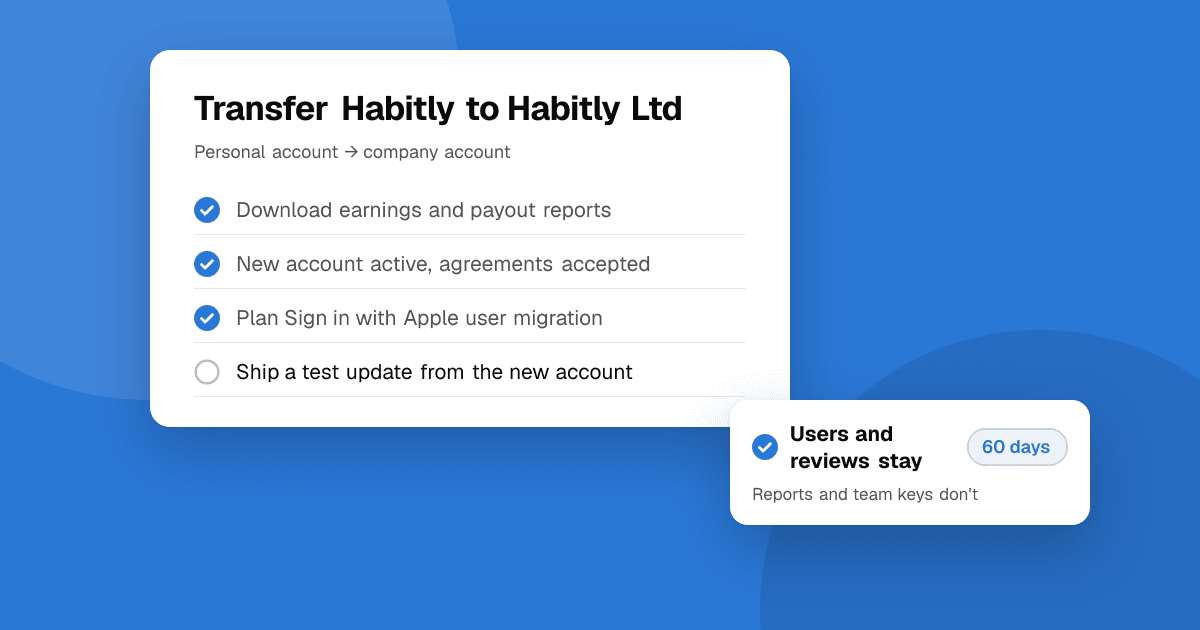
Short answer: both stores let you move a published app to another developer account without losing its users, listing or reviews. On Google Play you request the transfer from Play Console, and both accounts must be active and in good standing. On the App Store the account holder starts it in App Store Connect, and the recipient has 60 days to accept. Before you start, check what doesn't move: reports, some services tied to your team, and anything signed with keys only the old owner holds.
Why would I transfer an app?
Common reasons are moving from a personal account to a company account, selling an app, handing a client's app back to the client, or merging apps from several accounts into one. Transfers keep the same store listing, so users get updates as normal and your ranking history stays with the app.
How do I transfer an app on Google Play?
- Prepare the receiving account. It must be a fully registered, active Play Console developer account. If the app is paid or sells in-app products, the receiving account needs a payments profile set up.
- Check policy status. Google requires the original account and the apps you move to comply with Play policies. Fix open policy issues first.
- Download reports. Earnings, payouts and bulk export reports stay with the original account. Export what you need for taxes and records.
- Start the transfer from Play Console, following Google's help article "Transfer apps to a different developer account". Google may ask for account details from both sides, such as the registration transaction IDs.
- Confirm on both sides and wait for Google to process it.
What moves: the app, its users, ratings, reviews, store listing, content rating and statistics. What doesn't: financial reports and some account-level settings. Developer names must be unique, so rename the old account first if the new one should use the same name.
If you use Play App Signing, the app signing key moves with the app. Make sure the new owner gets or creates an upload key; our guide to Android app signing and upload keys covers how to request an upload key reset. Also check the new owner's Android developer verification status so the package name stays registered to a verified developer.
How do I transfer an app on the App Store?
Apple lists clear app transfer criteria:
- Both accounts must not be pending or changing, and both must have accepted the latest agreements.
- The app needs at least one version released on the App Store.
- The app can't be on pre-order, and it can't be in certain states such as waiting for review or processing.
- If the old owner accepted the EU Alternative Terms Addendum, the recipient must accept it too.
The account holder starts the transfer from the app's page in App Store Connect, entering the recipient's Team ID and account holder Apple ID. The recipient's account holder then accepts it within 60 days.
Watch out for:
- Sign in with Apple: user identifiers are scoped to your team. Use Apple's user migration process so existing users can still sign in after the move.
- Push notifications, App Groups and iCloud: keys, identifiers and containers belong to a team. Plan to recreate keys and test these features right after the transfer.
- TestFlight: testers and builds don't carry over. Invite testers again from the new account.
- Featuring nominations don't transfer.
What should I do before any transfer?
- Ship your last planned update from the old account so you start clean.
- Write down every service that uses team or account credentials: crash reporting, analytics, push, payments, server-to-server notifications.
- Agree in writing who owns the source code, domain, social accounts and support email. The store transfer only covers the listing.
- Tell users only if something will change for them, such as the developer name on the listing.
What should I do after the transfer?
Ship a small update from the new account as soon as you can. It proves signing, push, in-app purchases and sign-in all still work, and it's easier to fix problems while the transfer is fresh. Use a staged rollout; see how to ship app updates safely. Update the developer link and privacy policy URL on your listing if they changed.
Next steps
If the app now lives under your company, make sure its TrueLaunch listing points to the right developer too: list or update your app on TrueLaunch and verify ownership for the "Verified developer" badge.
Frequently asked questions
Do reviews and ratings move when I transfer an app?
Yes. On both Google Play and the App Store, the listing, users, ratings and reviews stay with the app after a transfer.
Can I transfer an app that was never released?
On the App Store, no: the app needs at least one version released on the store. Google Play transfers apply to apps in your Play Console, but check Google's current requirements first.
How long does an App Store transfer take?
Once the recipient accepts, the transfer usually completes quickly. The recipient must accept within 60 days of the request.
Do users need to reinstall the app after a transfer?
No. Users keep the app and get updates from the new account as normal, as long as you keep the same bundle ID or package name and signing setup.