Keyword density for Google Play descriptions: how often to use keywords
How Google Play reads your full description, how often to repeat keywords without stuffing, and how to structure a description that ranks and converts.
· 6 min de leitura
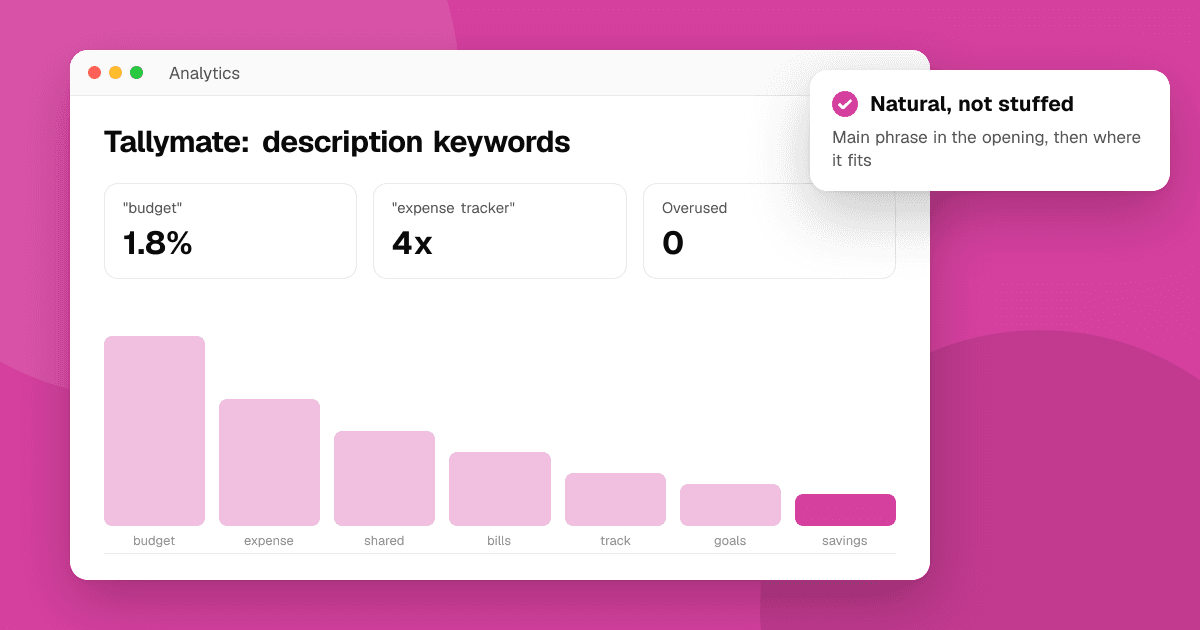
Short answer: Google Play reads your title, short description and full description when matching searches, so your keywords need to appear in the description. Use each important phrase naturally a few times across the text, where it actually describes what the app does, rather than chasing a fixed percentage. Repetitive or irrelevant keywords break Google Play's metadata policy and can get the listing rejected or suspended, and they read badly to the people deciding whether to install.
Does Google Play use the description for search?
Yes. Unlike the App Store, Google Play has no hidden keyword field. It works out what your app is about from the visible text:
- Title (30 characters): the strongest text signal.
- Short description (80 characters): shown near the top of the listing and widely considered an important signal.
- Full description (up to 4,000 characters): read for relevance. This is where most of your supporting keywords live.
Google also uses signals like installs, engagement, uninstalls and quality, which we cover in how Google Play search ranking works. Text decides which searches you can appear in; those signals mostly decide the order.
What is keyword density?
Keyword density is how often a word or phrase appears compared with the total words in a text. A phrase used 5 times in a 500-word description has a density of about 1%.
It's a useful warning light, not a target. Google doesn't publish an ideal density, and writing to hit a number tends to produce text nobody wants to read. What matters is that:
- Your main phrases are clearly present, including near the start.
- No single word is repeated so often that the text looks written for a search engine.
- Every repetition is doing a job in the sentence.
How often should I repeat a keyword?
There's no official number, so here are working guidelines most ASO practitioners would recognize:
- Main keyword: in the title, the short description, the first sentence or two of the full description, and then a few more times where it fits naturally across a long description.
- Secondary phrases: once or twice each, in the section that talks about that feature.
- Watch any word that dominates the text. If one word makes up several percent of everything you've written, read the description aloud. If it sounds odd, it is.
The free keyword density checker counts every one-, two- and three-word phrase in your description, shows each one's density, and flags single words above 3% so you can vary them. You can also enter the phrases you're targeting to see how often, and where, each appears. It runs in your browser, so your text stays on your device.
What counts as keyword stuffing on Google Play?
Google Play's metadata policy doesn't allow misleading, irrelevant, excessive or repetitive text in your listing. In practice, these patterns cause trouble:
- Lists of keywords without sentences, at the end of the description or anywhere else.
- The same phrase repeated many more times than the text needs.
- Other apps' or brands' names used to attract their searches.
- Unattributed testimonials and claims like "#1", "best" or "top app" without evidence.
- Excessive capitals, emoji or symbols used to stand out.
The consequences range from a rejected update to a suspended listing, so stuffing is never worth it. The store rejection checker flags several of these patterns before you submit.
How should I structure a Google Play description?
A clear structure helps people decide, and it naturally gives your keywords sensible places to appear.
- Opening (1 to 3 sentences): what the app does and who it's for, with your main phrase. Many visitors never expand the full text, so this has to work alone.
- Key features (a short list): each bullet starts with the benefit and uses the words people search for that feature. This is where secondary phrases fit best.
- Who it's for or how it works: a short paragraph describing typical uses, which often brings in long-tail phrases naturally.
- What makes it different: privacy, offline use, no ads, accessibility, whatever is genuinely true.
- Closing: a plain invitation to try it, and how to get help.
Our guide to writing an app description that converts goes deeper on the writing itself, and the app description template gives you a structured first draft.
What does fixing a stuffed description look like?
Here's a stuffed opening for a fictional expense app:
"Expense tracker app. Best expense tracker for expenses. Track expenses with our expense tracker, the expense manager and budget expense app."
"Expense" appears seven times in two sentences. It reads like spam, says almost nothing about the app, and is exactly what the metadata policy is meant to stop. A rewrite that keeps the keyword but works for people:
"Tallymate is an expense tracker for couples and housemates. Log shared costs in seconds, see who owes what, and settle up without awkward conversations."
The main phrase appears once, right at the start, and the rest of the sentence adds the long-tail ideas ("shared costs", "who owes what", "settle up") that real people search for. Further down, a features list can use "expense tracker" or "track expenses" once or twice more where they describe a specific feature.
What about the short description?
With only 80 characters, the short description should say the single most important thing in plain words, ideally with your main phrase: "Track habits and build streaks, with reminders that fit your day." Check the length with the character counter; it shows every Google Play and App Store field against its limit.
How do I check that my description is working?
- Run the density check before every update that touches the description.
- Check positions for your target phrases with the app rank checker. It searches Google Play live as a signed-out visitor in the country you choose and shows your position in the top 30 or so results, with the top 10 apps you're up against.
- Watch the Play Console for store listing visitors and conversion from search. If impressions grow but installs don't, the listing isn't convincing people; if neither grows, the keywords or competition are the problem.
- Change one section at a time and recheck after a couple of weeks.
Next steps
Paste your current description into the keyword density checker, add your three target phrases, and fix anything flagged as overused or missing from the opening lines. Then run the full listing through the ASO audit checklist and check your starting positions with the app rank checker. For a complete keyword method, read how to research App Store and Google Play keywords.
Frequently asked questions
What is the ideal keyword density for a Google Play description?
Google doesn't publish one. Use your main phrase in the opening and a few more times where it fits naturally, use secondary phrases once or twice, and treat any single word above a few percent as a sign to vary your wording.
Does Google Play read the full description for search?
Yes. Google Play has no hidden keyword field, so it uses your title, short description and full description to understand which searches your app is relevant to.
Can keyword stuffing get my app rejected on Google Play?
Yes. Google Play's metadata policy doesn't allow repetitive, irrelevant or misleading text, and listings that break it can be rejected or suspended.
Should I put a list of keywords at the end of my description?
No. Keyword lists without sentences are a classic stuffing pattern that breaks Google Play's metadata policy. Work your phrases into real sentences instead.
How long should a Google Play description be?
Long enough to explain the app clearly; the limit is 4,000 characters. Most people only read the first lines, so put what the app does and your main phrase first, then add detail for those who expand the text.