How to find app keywords with Google Play and App Store autocomplete
Use the stores' own search suggestions as a free app keyword finder: the A to Z method, how to read what you see, and how to turn it into a keyword list you can use.
· 6 min read
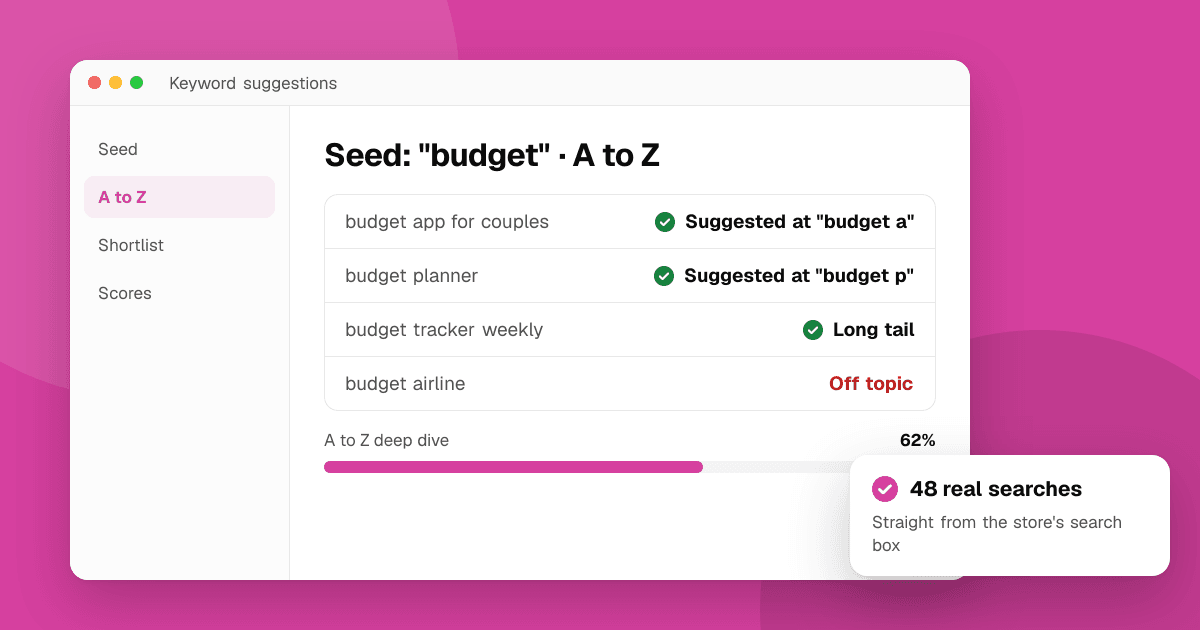
Short answer: type the start of a phrase into the Google Play or App Store search box and write down every suggestion. Those suggestions come from what people search, so they are real keywords, not guesses. Repeat with your seed word followed by each letter from a to z to uncover longer phrases, keep the ones that describe your app, then check each one for difficulty and for where you already rank. Our free keyword suggestion tool does the typing for you, in 52 countries, with no sign-up.
Why use store autocomplete to find app keywords?
Store autocomplete is the closest thing to a free search-volume signal the stores give you. Neither Google Play nor the App Store publishes how many people search a phrase, but both search boxes only suggest phrases that enough people have typed. A suggestion is proof that a phrase gets searched.
It has three other advantages over generic keyword tools:
- It speaks the store's language. People search the App Store differently from Google. "Habit tracker" is a store search; "how to build habits" is a web search.
- It is local. Suggestions change by country and language, which matters if you localize your listing.
- It is current. New trends, seasonal phrases and competitor names show up in suggestions quickly.
How does the A to Z method work?
The A to Z method turns one seed word into dozens of long-tail phrases:
- Pick a seed that describes your app in one or two words: "budget", "sleep sounds", "pixel art".
- Type the seed alone and record the suggestions.
- Add a space and a letter: "budget a", "budget b", all the way to "budget z". Each letter brings up phrases that continue with that letter, like "budget app for couples" or "budget planner".
- Try the letter before the seed for phrases where your word comes second: "a budget", "monthly budget".
- Remove duplicates and anything that names another company's app.
Doing this by hand takes a while: 26 letters per seed, per store, per country. The keyword suggestion tool has an A to Z deep dive that runs all 26 searches in a row, removes duplicates and groups the results by letter.
How do I read what autocomplete shows?
Not every suggestion is a keyword for you. Sort what you collect into four groups:
- Category phrases that describe what your app does ("expense tracker", "white noise for sleep"). These are your main candidates.
- Long-tail phrases that add a detail ("expense tracker for freelancers", "white noise for babies"). Fewer people search them, but those who do want exactly that, and fewer apps compete. See long-tail keywords for apps.
- Brand names of other apps. Never put them in your listing: both stores restrict using another company's trademark, and it can get an update rejected. They are still useful, because they tell you who people compare you with.
- Off-topic phrases that share a word but mean something else ("budget airline" for a budgeting app). Drop them.
Order matters too. A phrase that appears after typing only a few letters, and near the top of the list, is usually searched more than one that appears only when you type it in full. We explain how to turn that into an estimate in App Store search popularity explained.
How do I turn suggestions into a keyword list?
A list of 200 phrases is not a plan. Narrow it down:
- Keep 20 to 40 phrases that describe your app honestly. If a user who searched it would be disappointed by your app, cut it.
- Check difficulty. Run each phrase through the keyword difficulty checker. It looks at the current top 10 and tells you how many of those apps put the whole phrase, or all its words, in their name. A top 10 full of exact-match names is hard to break into.
- Check popularity in the same tool, which estimates how searched the phrase is from autocomplete.
- Check your current position with the app rank checker. If you are already at 15 for a phrase, a title tweak may move you into the top 10 faster than chasing a new phrase.
- Pick five to ten targets: popular enough to matter, winnable enough to try.
Write the list in a spreadsheet with columns for the phrase, store, country, difficulty, popularity, your position and the date. That table becomes your tracking sheet; see how to track app keyword rankings.
Where do the keywords go in my listing?
- App Store: your most important phrase in the app name, the next in the subtitle, and the remaining single words in the hidden 100-character keyword field, without repeating words already in the name or subtitle. The iOS keyword field optimizer removes repeats and spaces, and our keyword field guide explains the rules.
- Google Play: your main phrase in the title, a supporting one in the short description, and the rest written naturally into the full description. Google reads the description, but repeating a phrase too often reads as spam. The keyword density checker shows which words you overuse.
Always write for people first. A title that reads like a list of keywords converts worse and can break store rules.
Should I use different keywords in different countries?
Yes. Autocomplete in the United Kingdom, India and Brazil can be very different for the same idea, even in English. If you localize your listing, run the A to Z method in each country you target, in the language people there search in. Translating your English keywords word for word often misses the phrases locals use. Our app localization guide covers the rest of the listing.
How often should I redo this?
Every two or three months, or whenever you add a major feature. Suggestions shift with seasons, trends and new competitors. A quick rerun of your seed words shows phrases that are new since last time.
What mistakes should I avoid?
- Collecting without checking. A long list feels productive, but only phrases you score and place in your listing do anything.
- Chasing one-word phrases. "Budget" or "sleep" are searched a lot and won by the biggest apps. Two- and three-word phrases are where small apps rank.
- Researching only in your own country. If most of your users are elsewhere, your keywords should come from their store.
- Changing everything at once. Change a few phrases per update so you can tell what helped.
Next steps
Pick one seed word for your app and run the A to Z deep dive in the keyword suggestion tool. Shortlist 20 phrases, score them with the keyword difficulty checker, then see where you stand with the app rank checker. For the bigger picture, read how to research App Store and Google Play keywords and the full App Store optimization guide. All our ASO tools are free at /tools.
Frequently asked questions
Is store autocomplete a reliable keyword source?
Yes, for finding phrases people search. The stores only suggest phrases that are typed often enough, so every suggestion is a real search. It doesn't tell you exact search numbers, so pair it with a difficulty check before you commit.
What is the A to Z keyword method?
You type your seed word followed by a space and each letter from a to z into the store's search box, and record the suggestions for each. It uncovers longer phrases that start with your seed, which are often less competitive.
Are Google Play and App Store suggestions the same?
No. Each store has its own suggestions, and both change by country and language. Research each store and each country you target separately.
Can I use competitor app names as keywords?
No. Both stores restrict using other companies' trademarks in your metadata, and it can get an update rejected. Use brand suggestions only to learn which apps people compare yours with.
Is the keyword suggestion tool free?
Yes. It's free, needs no account and works for Google Play and the App Store in 52 countries. Answers are cached for a few hours so popular searches stay fast.