App Store keyword field: how to use all 100 characters well
How the hidden App Store keyword field works, how to format it, which words to leave out and how to fit more searches into Apple's 100-character limit.
· 6 min read
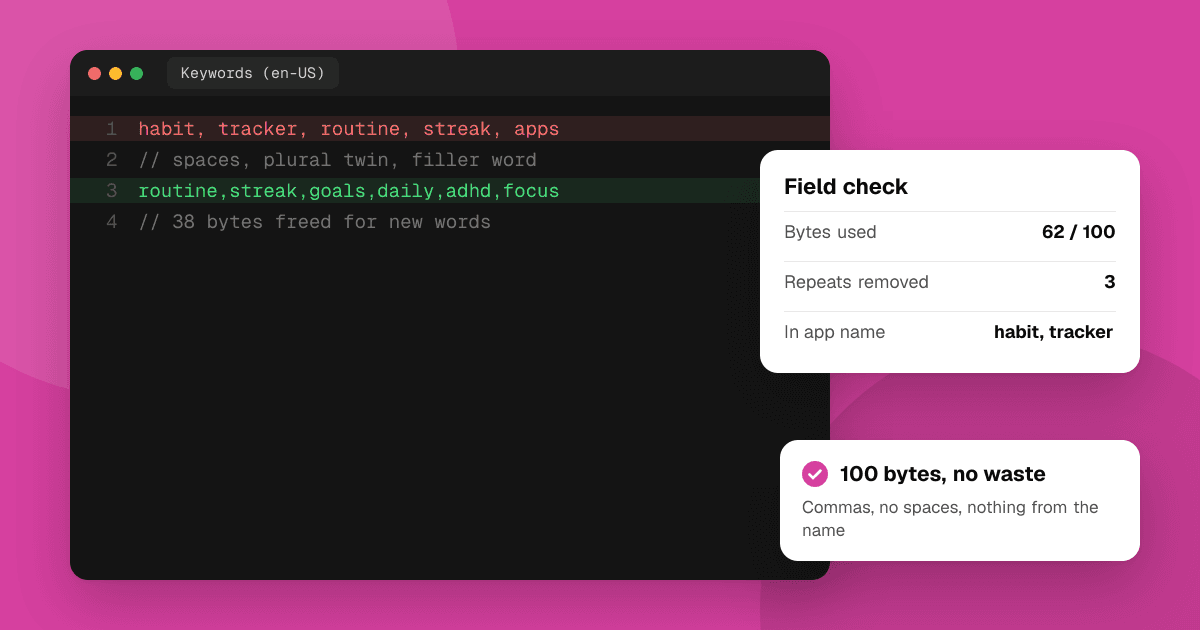
Short answer: the App Store keyword field is a hidden, 100-character list of extra search words that Apple indexes alongside your app name and subtitle. Separate words with commas and no spaces, never repeat a word that's already in your name or subtitle, prefer single words over phrases, and leave out filler like "app" and other companies' brand names. Then check which searches the combination actually ranks for, and swap out words that don't earn their place.
What is the App Store keyword field?
When you prepare a version in App Store Connect, each localization has a Keywords field. It's never shown to users, but Apple uses it, together with the app name and subtitle, to decide which searches your app can appear in. Our guide to how App Store search ranking works explains how those three fields fit together.
The limit is 100 bytes, which App Store Connect shows as 100 characters. For English and other languages written without accents that's the same thing. Accented letters and many non-Latin scripts use two or three bytes each, so the field fills up faster in those languages.
How should I format the keyword field?
- Commas, no spaces: "habit,tracker,routine,streak" rather than "habit, tracker, routine, streak". A space after each comma wastes a character every time.
- Single words beat phrases. Apple generally combines words across your name, subtitle and keyword field, so "habit" in the name plus "planner" in the keyword field can match "habit planner". Writing the full phrase in the keyword field usually repeats words you already have.
- Lowercase is fine. Search isn't case-sensitive.
- No need for special characters like hashtags or quotes.
The free iOS keyword field optimizer does this cleanup for you: paste your name, subtitle and keyword field, and it removes spaces, repeats and words already used elsewhere, then shows how many bytes you freed. It runs in your browser, so nothing is sent anywhere.
Which words should I leave out?
Every character spent on a word that doesn't help is a character you can't use for one that does. Common wasted words:
- Words already in your app name or subtitle. They're indexed already; repeating them doesn't seem to add weight.
- "App" and generic filler like "the", "and", "for", "with".
- Your category name. You're already in the category, and practitioners generally find the word itself adds little.
- Plurals when you have the singular (and vice versa). Many ASO practitioners report that Apple matches simple singular and plural forms, so "tracker" may cover "trackers". Apple doesn't document this precisely, so test it for your most important words with the app rank checker before you rely on it.
- Misspellings of common words. They rarely bring meaningful traffic today, since store search corrects most typos.
- Other companies' brand names and trademarks. Apple's guidelines don't allow them in metadata, updates can be rejected for them, and brand owners can complain. More on that in common App Store rejections.
How do I choose which words go in?
Start from your main and secondary keywords, then fill the field with the words that complete other useful searches.
- List candidate searches your users might type. The keyword suggestion tool shows real App Store autocomplete phrases for any seed word.
- Break them into single words and remove anything already in your name or subtitle.
- Rank the remaining words by how many good searches they help complete, and how winnable those searches are. The keyword difficulty checker scores each phrase from the current top 10 results.
- Fill the field in that order until you run out of bytes.
- Leave long-shot words for later. If a word only completes very competitive searches, a more specific word may serve you better. See long-tail keywords for apps.
What does a good keyword field look like?
Take a fictional habit app named "Streakly: Habit Tracker" with the subtitle "Build routines that stick". A first draft of its keyword field might be:
"habit tracker, habits, daily habit app, routine planner, streaks, goals"
That spends about 70 characters, and much of it is wasted: "habit", "tracker" and "routine" are already in the name or subtitle, "habits" and "streaks" are plural twins, "app" is filler and the spaces after commas add nothing. A cleaned version keeps only new words:
"daily,planner,streak,goals,adhd,focus,morning,water,reading,journal,mood,reminder,checklist,selfcare"
Now the field reaches searches like "daily planner", "habit tracker adhd", "morning routine" and "water reminder" by combining with words from the name and subtitle, and every one of its 100 characters is a new word.
Can I use more than one keyword field?
Each localization you add in App Store Connect has its own name, subtitle and keyword field. Apple indexes certain extra localizations in some storefronts; for example, it has long been common practice for developers in the United States to fill an additional localization (such as Spanish (Mexico)) to gain more indexed words for US search. Which localizations count where can change, so check Apple's current App Store Connect documentation on localizations before planning around it, and only add localizations whose text is genuinely useful to people reading it.
What's always true: if you serve users in another language, write that localization's keywords in their words, not as a direct translation. Our guide to app localization covers how.
When can I change the keyword field?
Keywords are tied to a version, so changes go live when you submit an update (or a new version) and it's approved. That has two practical effects:
- Batch keyword changes with real updates rather than shipping empty versions just to test words.
- Change a few words at a time and note the date, so you can tell what helped. Keep a simple log of each version's keywords next to your positions from the app rank checker.
How do I know if my keywords work?
- Check positions for the searches each word was meant to complete. The rank checker searches the App Store live as a signed-out visitor in the country you pick (52 countries), shows exact positions for the first screen of results and estimates further down, up to 200.
- Watch App Store Connect analytics: impressions and downloads from App Store search tell you whether the traffic is real.
- Drop words that don't rank after a few weeks and try the next candidates on your list.
Next steps
Paste your current name, subtitle and keyword field into the iOS keyword field optimizer and see how many bytes you can free today. Then fill them with words from your research, submit them with your next update and check your positions a couple of weeks later. For a broader method, read how to research App Store keywords.
Frequently asked questions
Should I use spaces after commas in the App Store keyword field?
No. Separate keywords with commas only. Spaces after commas count toward the 100-character limit and add nothing to search.
Should I repeat my app name in the keyword field?
No. Words in your app name and subtitle are already indexed. Repeating them uses space you could spend on new words.
Do I need both singular and plural keywords?
Many practitioners find Apple matches simple singular and plural forms, so one is usually enough. Apple doesn't document this exactly, so check your most important words with a rank checker before removing the other form.
Can I put competitor names in my App Store keywords?
No. Apple's guidelines don't allow other companies' trademarks in metadata, updates can be rejected for it, and brand owners can file complaints.
How often should I update my App Store keywords?
Change a few words with each meaningful app update, then give them a few weeks before judging. Frequent, untracked changes make it hard to tell what worked.